
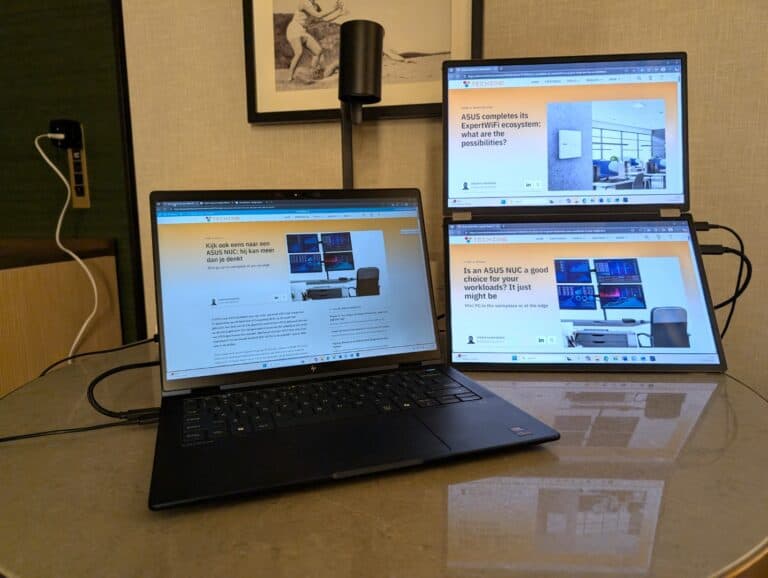
A fixed workplace requires a fixed monitor. If you don’t have a fixed workplace, for example because you’re on the road or often work at different desks that don’t have monitors, you’ll have to make do with your laptop screen. Or will you? ASUS now offers a wide range of ZenScreen mobile monitors that you can connect to a laptop via USB-C. We tried out three models: ASUS ZenScreen MB169CK, ASUS ZenScreen Duo OLED MQ149CD, and ASUS ZenScreen MB249C. In this article, you can read our findings.
We can no longer do without a mobile monitor. Especially during press trips, there is always an extra screen next to the laptop on the desk in our hotel room. As mentioned, ASUS has a lot of them. Many are (subtle) variations on the same theme, but there are also some major differences. To make these clear, the company sent us three completely different models.
- ASUS ZenScreen MB169CK, a ‘standard model’ with a 16-inch screen diagonal and a relatively low price on the ASUS website: €109.90 at the time of writing (December 2025).
- ASUS ZenScreen MB249C, a model with a larger screen size (24 inches) than is usual for mobile monitors and a price of €329.90 on the ASUS website at the time of writing.
- ASUS ZenScreen Duo OLED MQ149CD, a high-end model with two screens. This is the most expensive model in the lineup, with a price of €609.90 on the ASUS website.
ASUS ZenScreen MB169CK
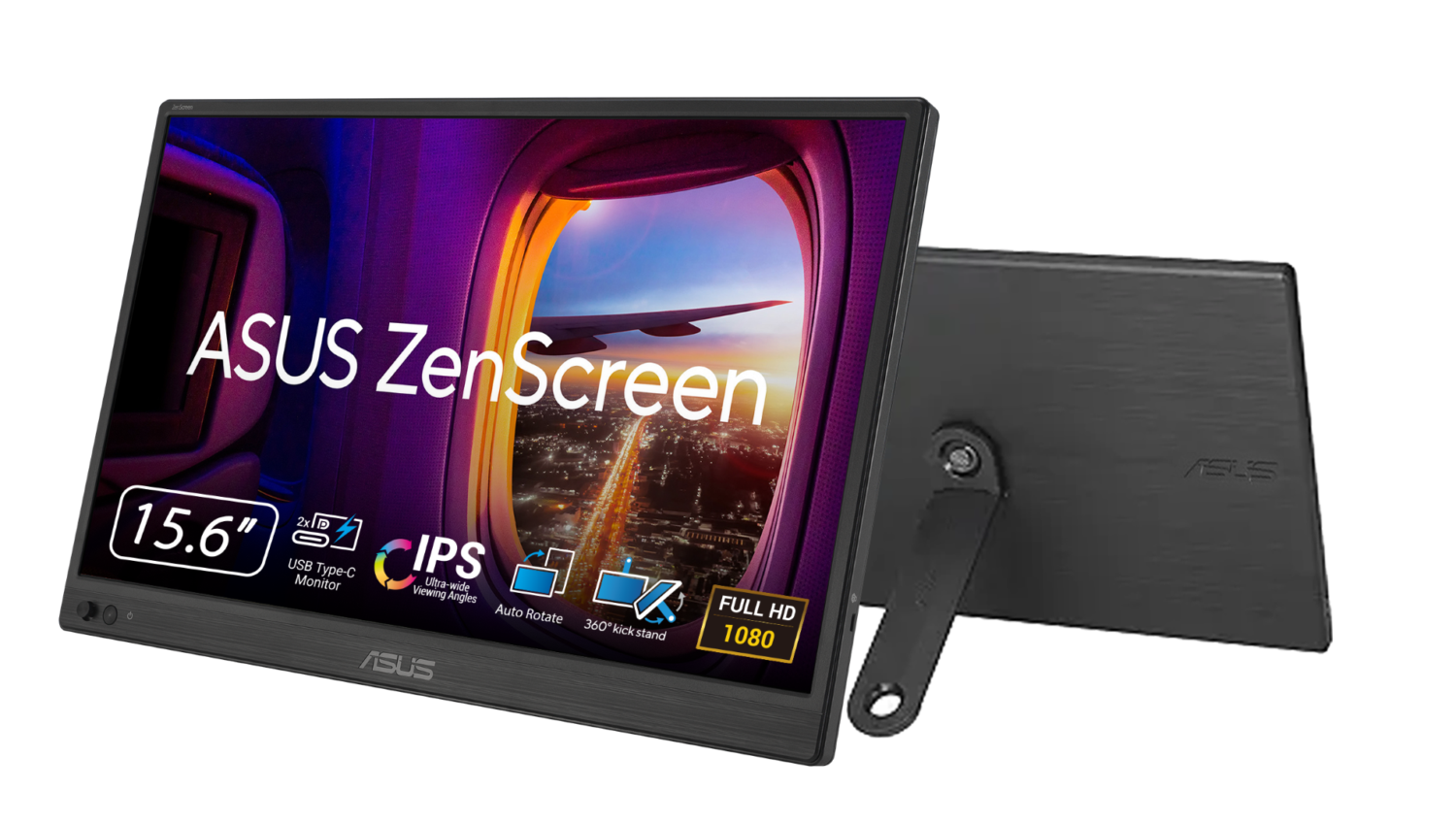
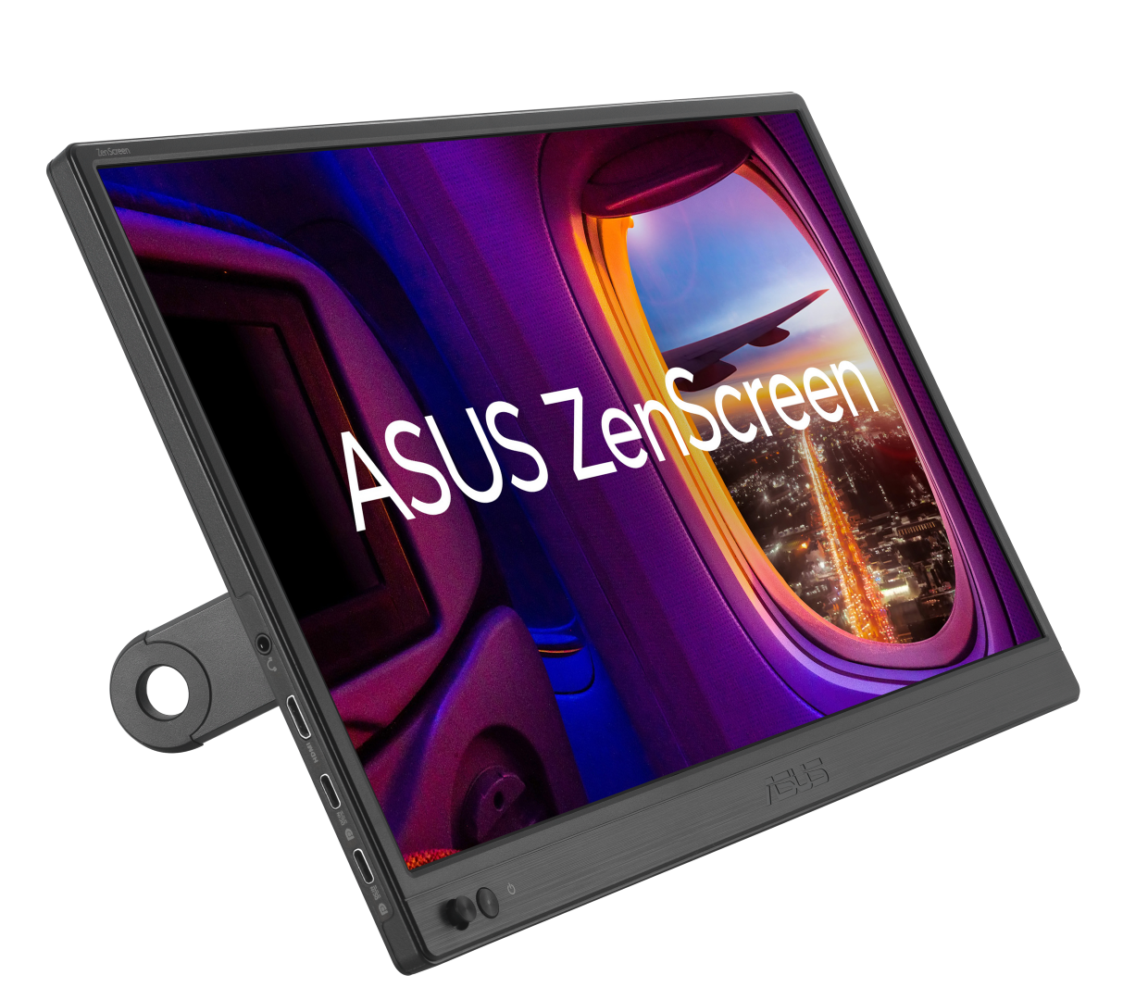
The first model we discuss in this article is the ASUS ZenScreen MB169CK. As the first two digits in the model number suggest, this is a monitor with a screen diagonal of 16 (actually 15.6) inches. That’s a nice extra surface area next to a laptop screen. It weighs around 780 grams and is just over a centimeter thick. Keep in mind that this monitor is best transported in the included cover. Otherwise, the panel will be damaged too quickly. This makes the monitor a little less easy to transport. It won’t just fit in the laptop compartment of a (back)pack along with your laptop.
The IPS panel has a Full HD resolution of 1920×1080 and therefore a screen ratio of 16:9. According to ASUS, the maximum brightness is 250 nits. That’s not extremely bright, but in our opinion it’s sufficient for most uses. It also helps that the screen has a matte finish. This makes it easy to read even in bright ambient light.
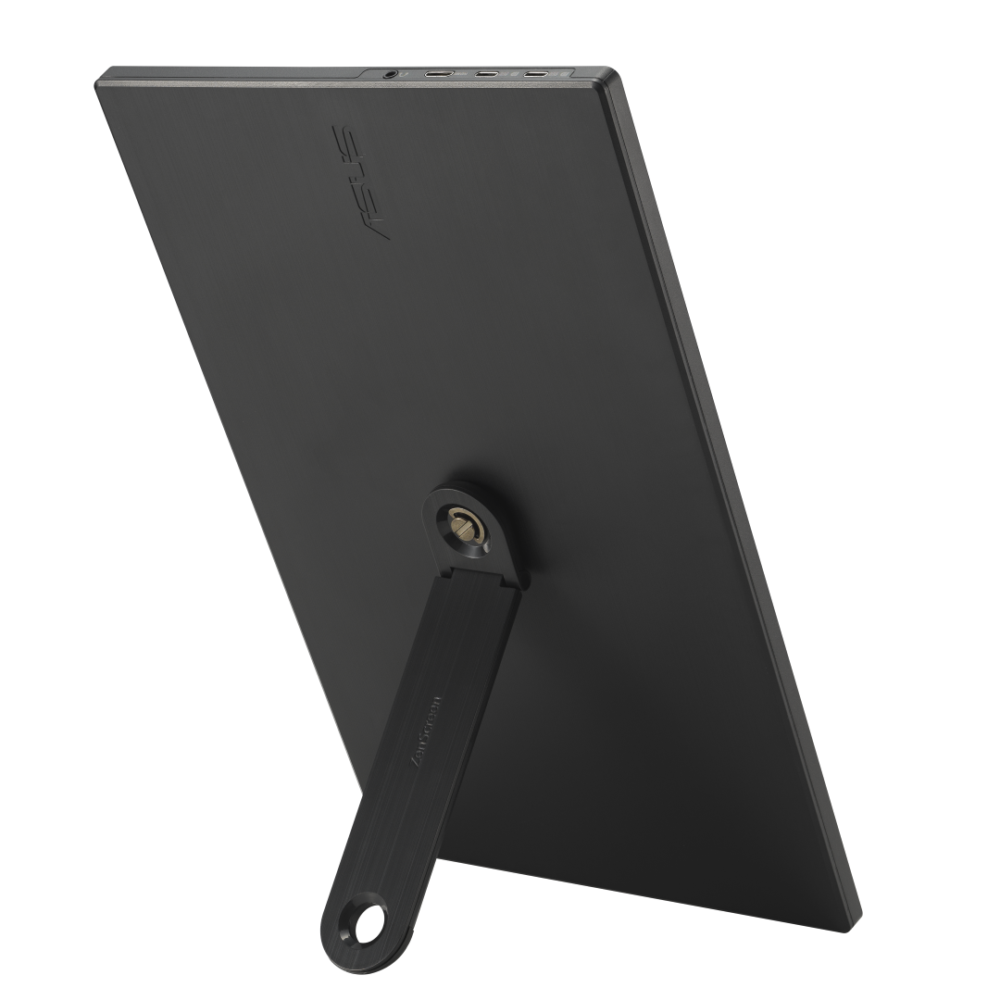
You can connect the ASUS ZenScreen MB169CK to a laptop via USB-C or HDMI. The monitor has two USB Type-C ports and a Mini HDMI port, as well as a 3.5mm headphone jack. This makes it possible to connect multiple devices to the monitor at the same time. You can switch between inputs using the button at the bottom left of the monitor, which takes you to the On-Screen Display (OSD). ASUS also provides a cable for both connection types. That’s nice, because Mini HDMI in particular won’t be included in everyone’s box of cables.
If your laptop doesn’t have USB-C with DP Alt Mode (which would surprise us greatly in 2025, by the way), you can connect the monitor via HDMI. Keep in mind that you will still need to plug a Type-C cable into the monitor to power it.
In terms of hardware, we also noticed that ASUS includes a kickstand. You can attach it to the tripod mount on the back, after which you can place or hang the monitor both vertically and horizontally. The image rotates automatically, provided you have installed the ASUS DisplayWidget Center software. This software, which we will discuss in more detail later, is available for both Microsoft and Apple machines running Windows 11 and macOS 12, according to the official ASUS download page. It is important to note that auto-rotation (one of the many features of the software) only works on Windows PCs and that not all ASUS ZenScreen models are compatible with the software.
Below are some photos of the ASUS ZenScreen MB169CK:
ASUS ZenScreen MB249C
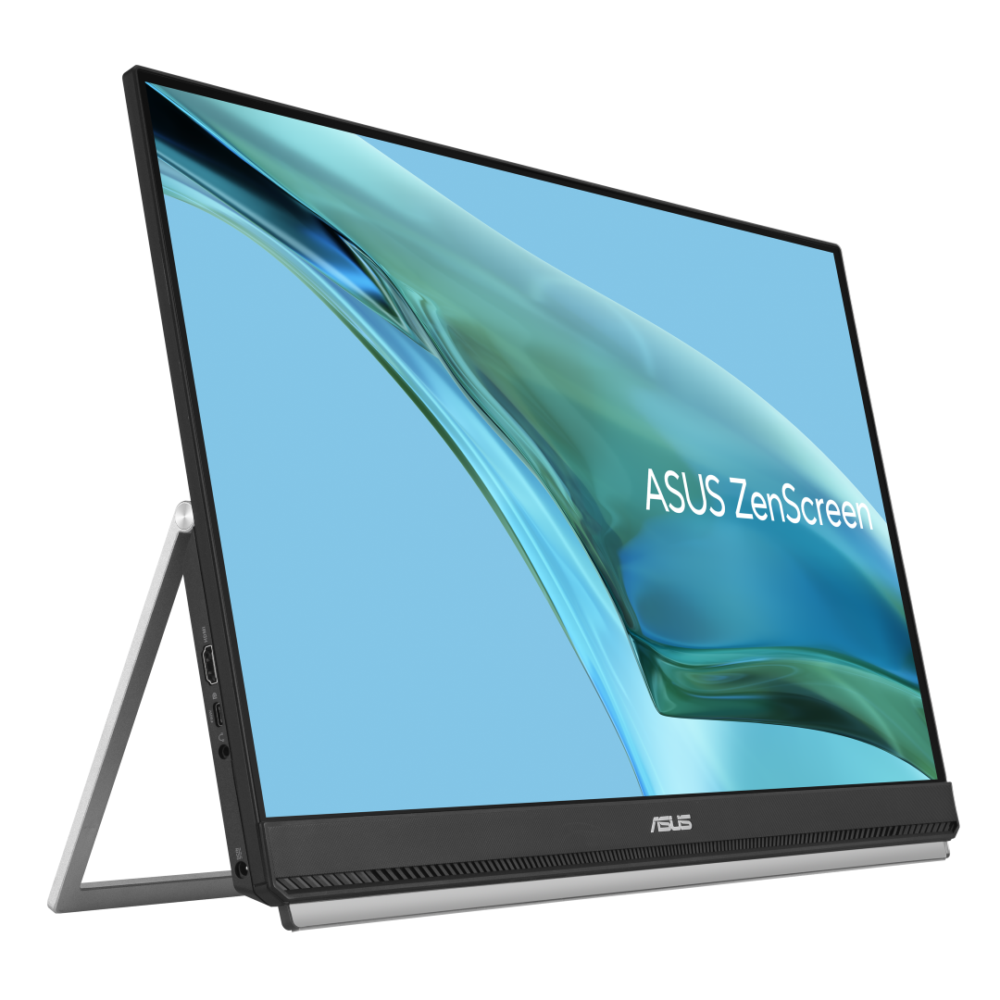
The second model we are discussing here is the ASUS ZenScreen MB249C. This is a 24-inch monitor with an IPS panel with a Full HD resolution of 1920×1080 (16:9) and a matte finish. Like the monitor discussed above, it has a maximum brightness of 250 nits. In the office environment where we tested the monitor, the brightness was more than sufficient for us.
However, we are no longer used to Full HD on 24 inches. The next generation could do with a little improvement in this area. Furthermore, IPS screen technology means good viewing angles. The virtually borderless design also gives it a very attractive appearance. The built-in stereo speakers are fine for system sounds and also for audio during a video call, but not for music.
In terms of connections, we see a full-size HDMI connection, a USB Type-C connection, and a 3.5mm connection. You can power this monitor via the Type-C connection and thus add a large extra screen with a single cable. This is useful if you move the monitor regularly. However, ASUS probably has a different use in mind. There is also a connection for a power adapter. In combination with the 60W that the Type-C can supply to connected devices, it seems that the intention is to power the monitor with the included adapter and then connect your laptop to it with a cable. That laptop will then also be charged immediately.
You may wonder whether ASUS is stretching the definition of mobile with this model. It is not mobile like the MB169CK above and the Duo OLED MQ149CD below. In other words, it does not fit in a backpack or laptop bag. This means it is not as easy to take with you when traveling as the other two.
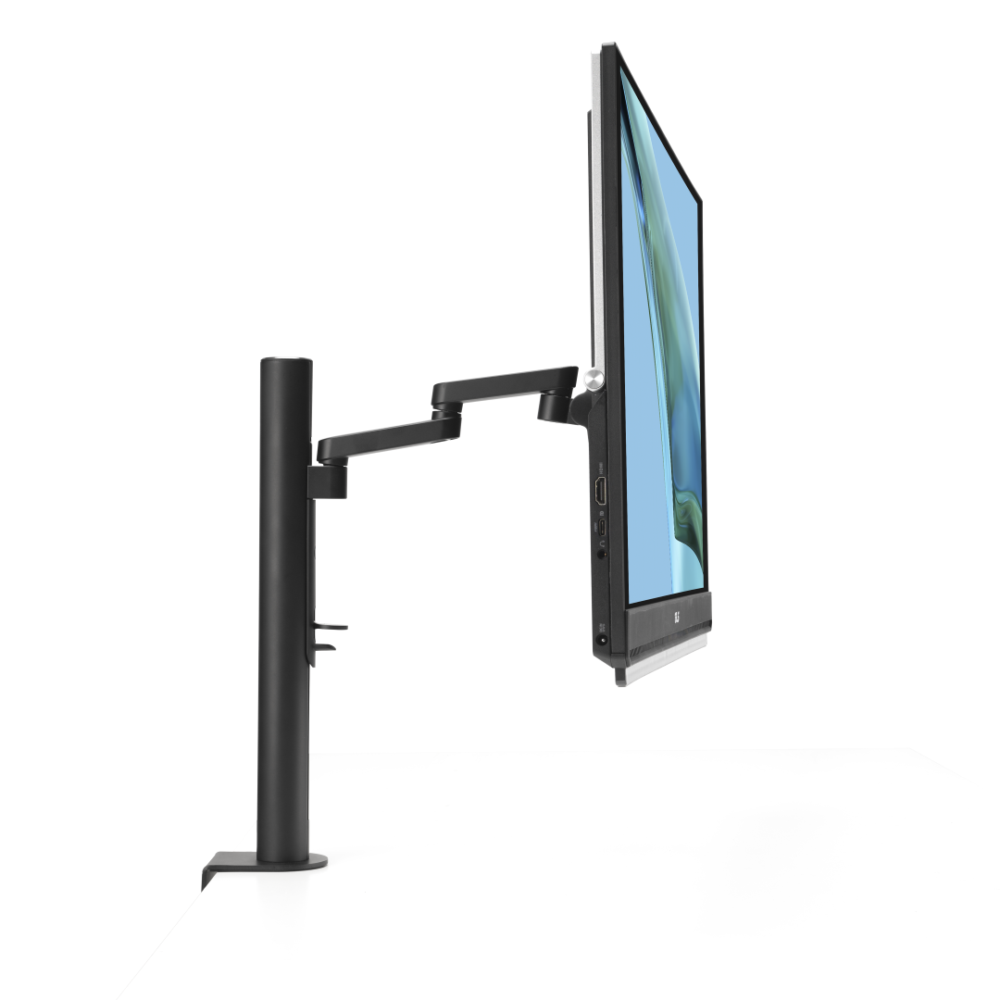
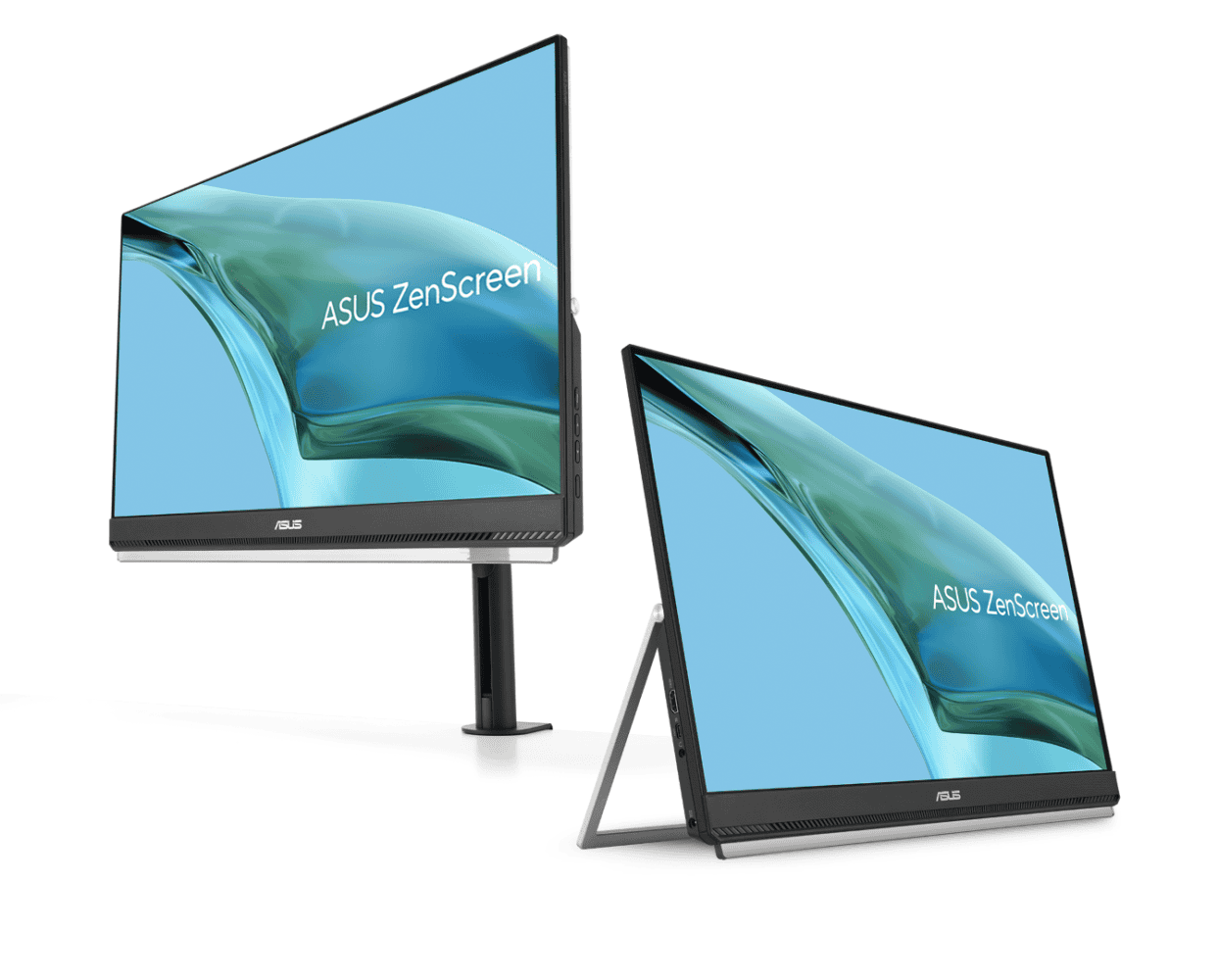
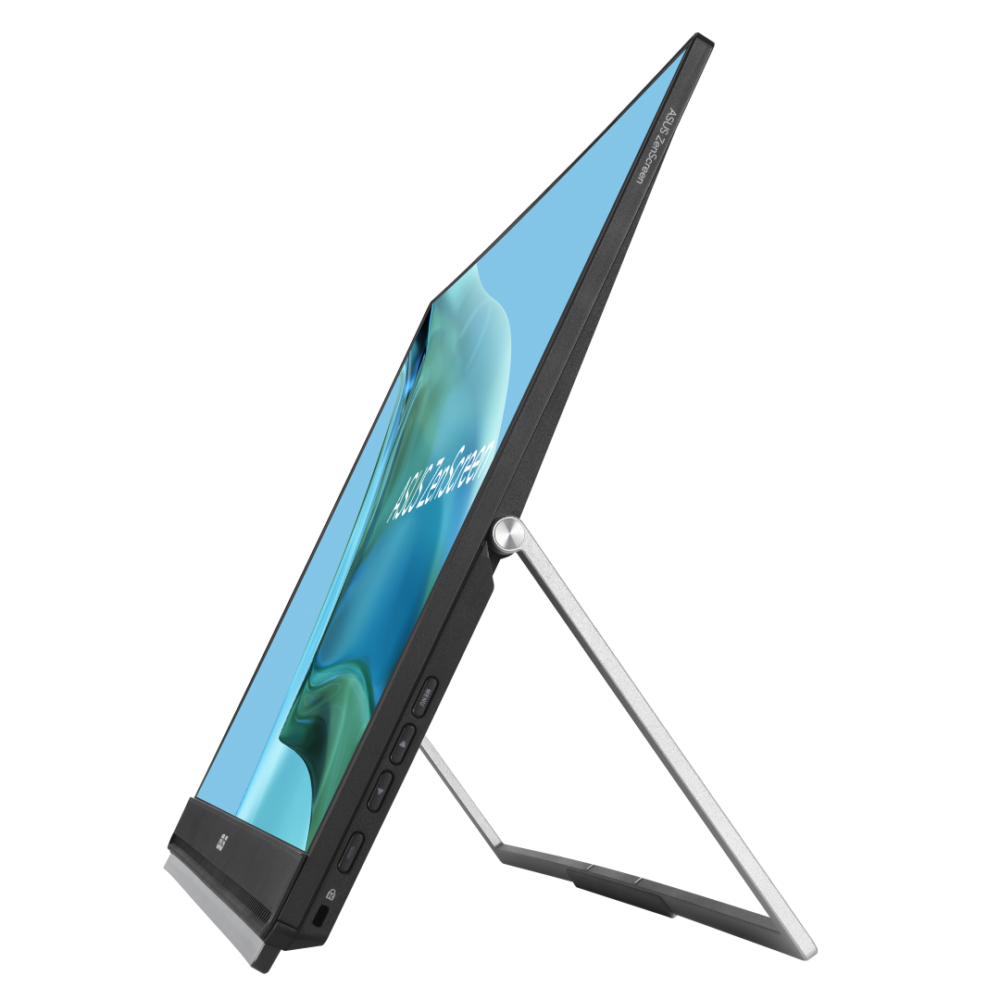
However, the MB249C is mobile if you look at it from a slightly different perspective. It is relatively thin (2.3 cm) and light (2.8 kg) compared to ‘regular’ 24-inch monitors and is designed to be mobile between workplaces at home and/or in an office. There is an integrated kickstand on the back of the monitor. This allows you to position the device almost upright, almost flat, and at all possible angles in between. This should improve ergonomics if you want to use the monitor in several different places.
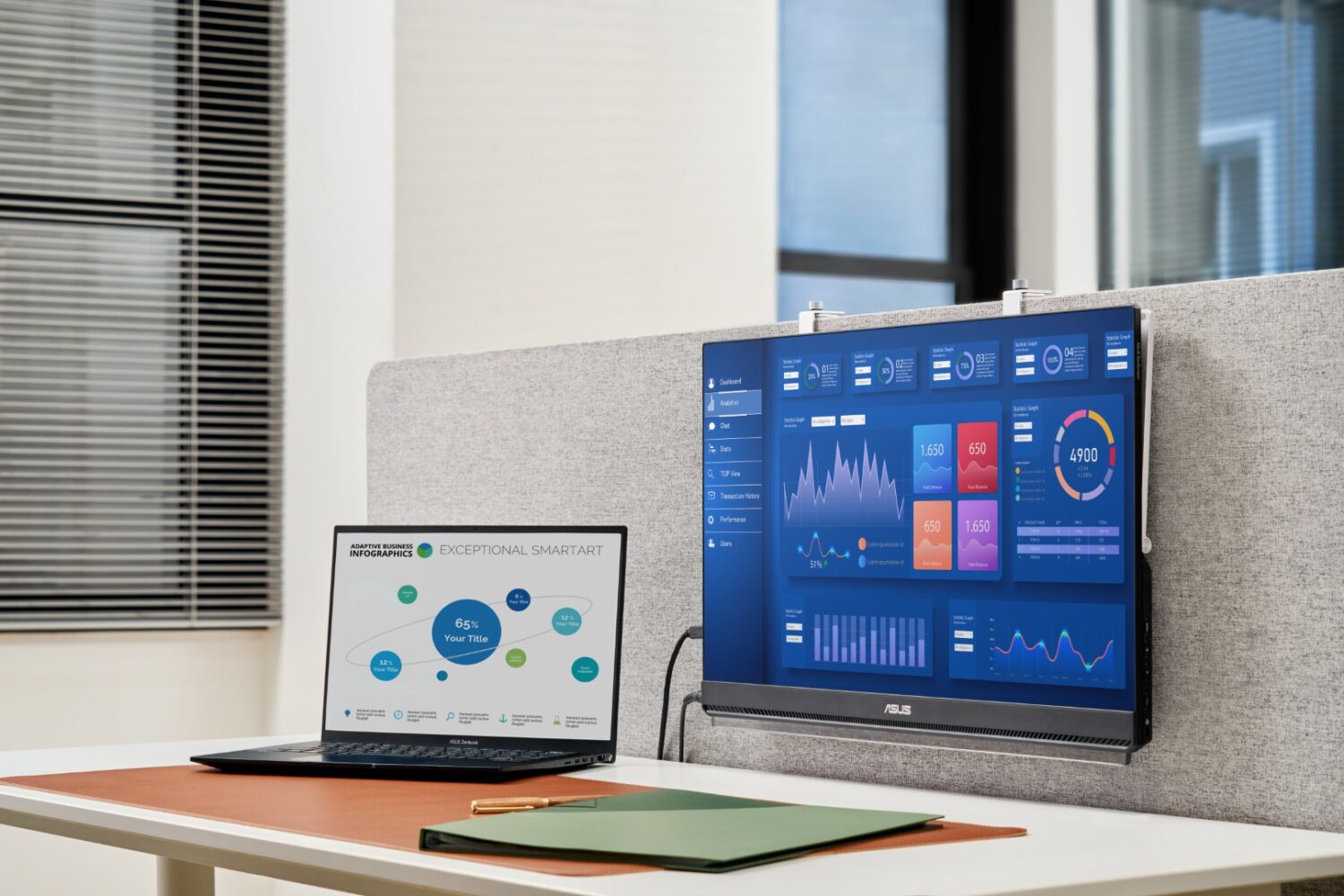
Nevertheless, we believe the ASUS ZenScreen MB249C is primarily intended for semi-permanent placement. It is no coincidence that ASUS also supplies a monitor arm and a hook in the box it sent us. You can use the latter to attach it to partition walls (between desks, for example). The external adapter and the 60W of PD of the Type-C connector complete the picture.
In our opinion, the ASUS ZenScreen MB249C is more of a monitor for creating workspaces in places where other monitors cannot be used than a mobile monitor in the true sense of the word. This may be of interest to organizations that are struggling with a lack of space but would like to create some extra workspaces. However, for such a semi-permanent use, we believe that the image quality could be improved. A Full HD 24-inch monitor that you have to work on permanently is no longer really up to date.
Below are some photos of the ASUS ZenScreen MB249C:

ASUS ZenScreen Duo OLED MQ149CD
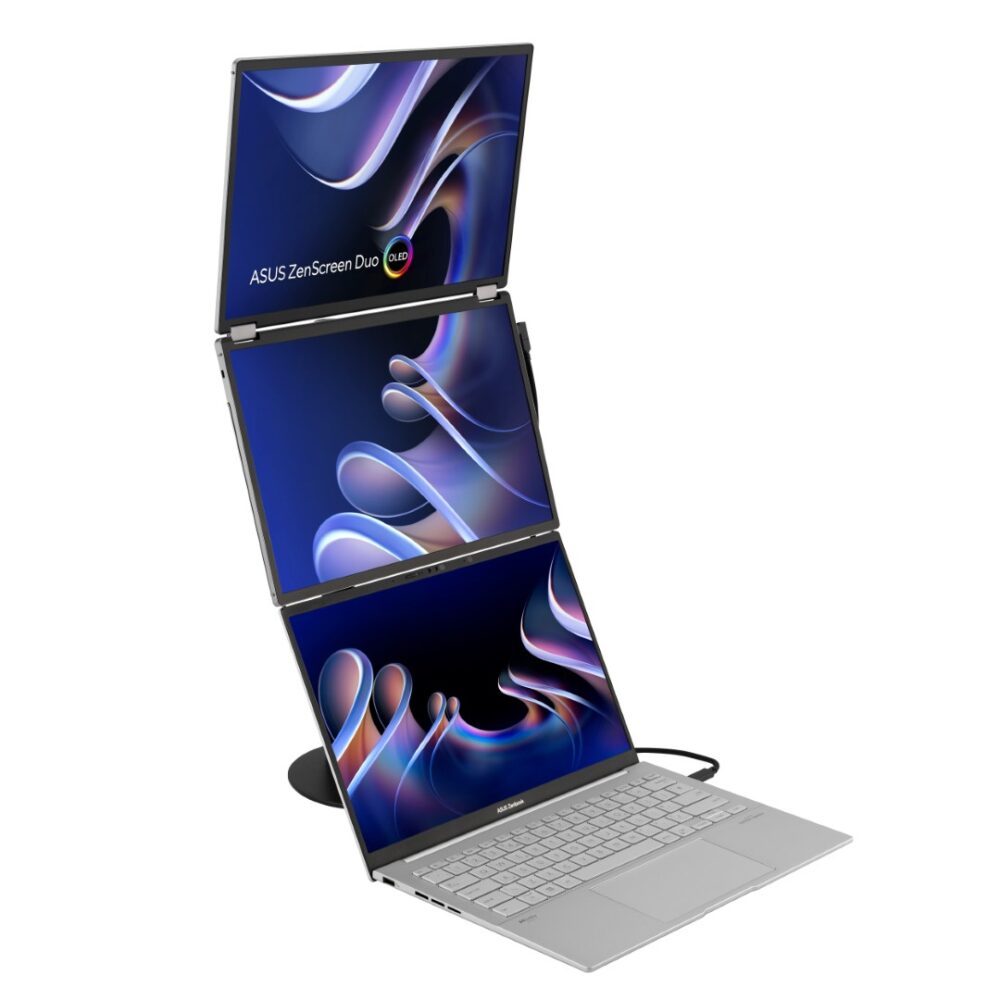
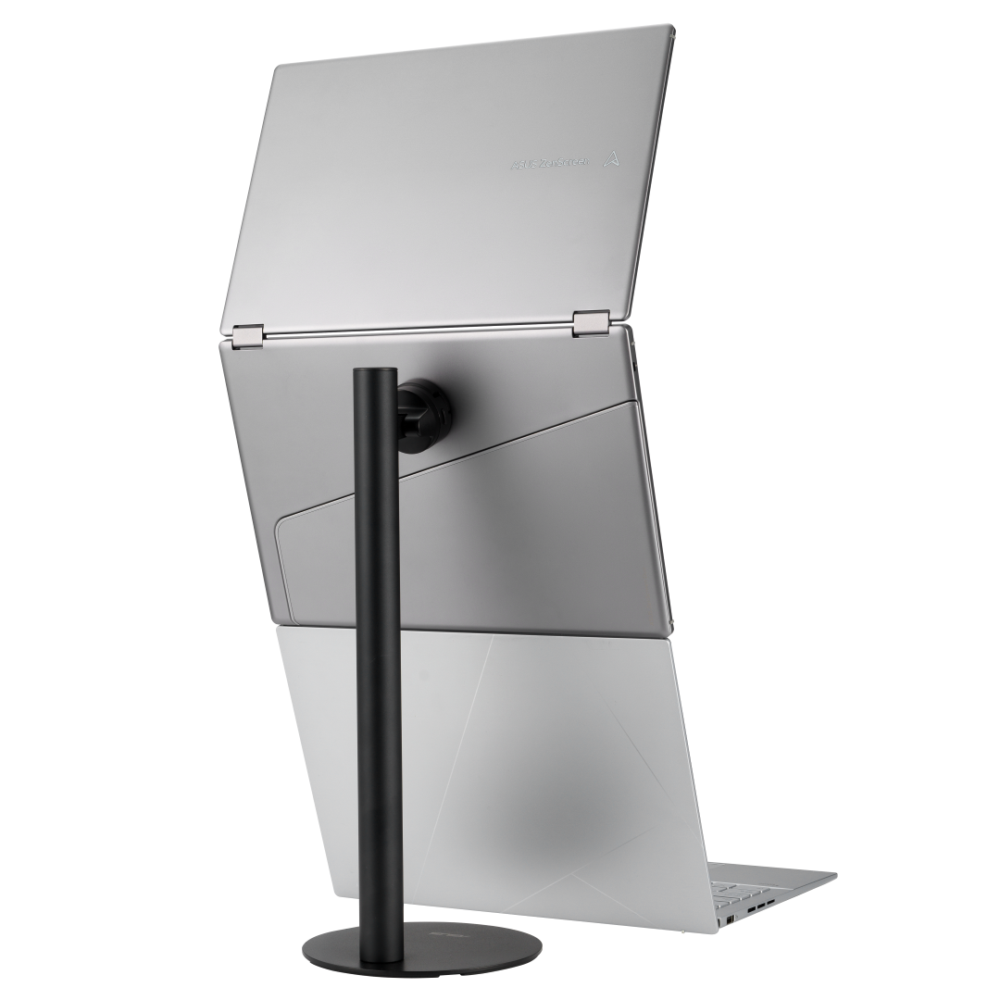
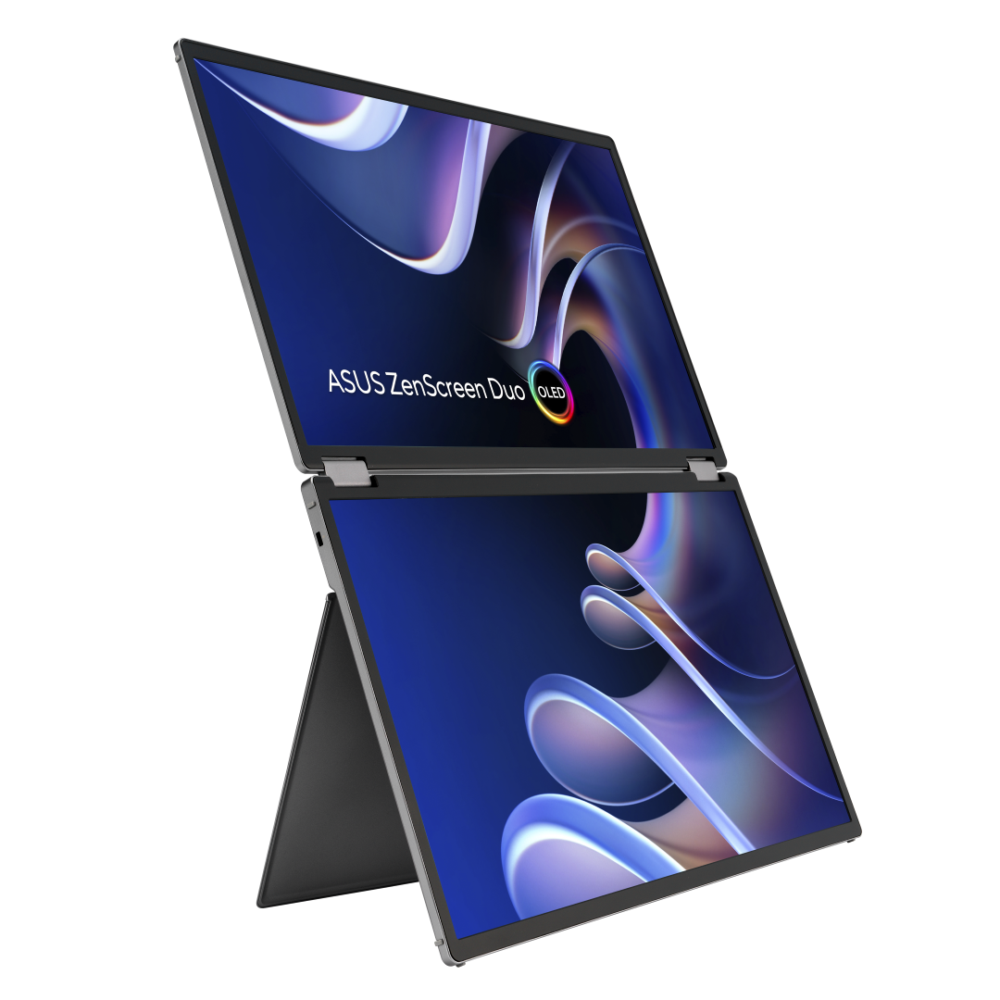
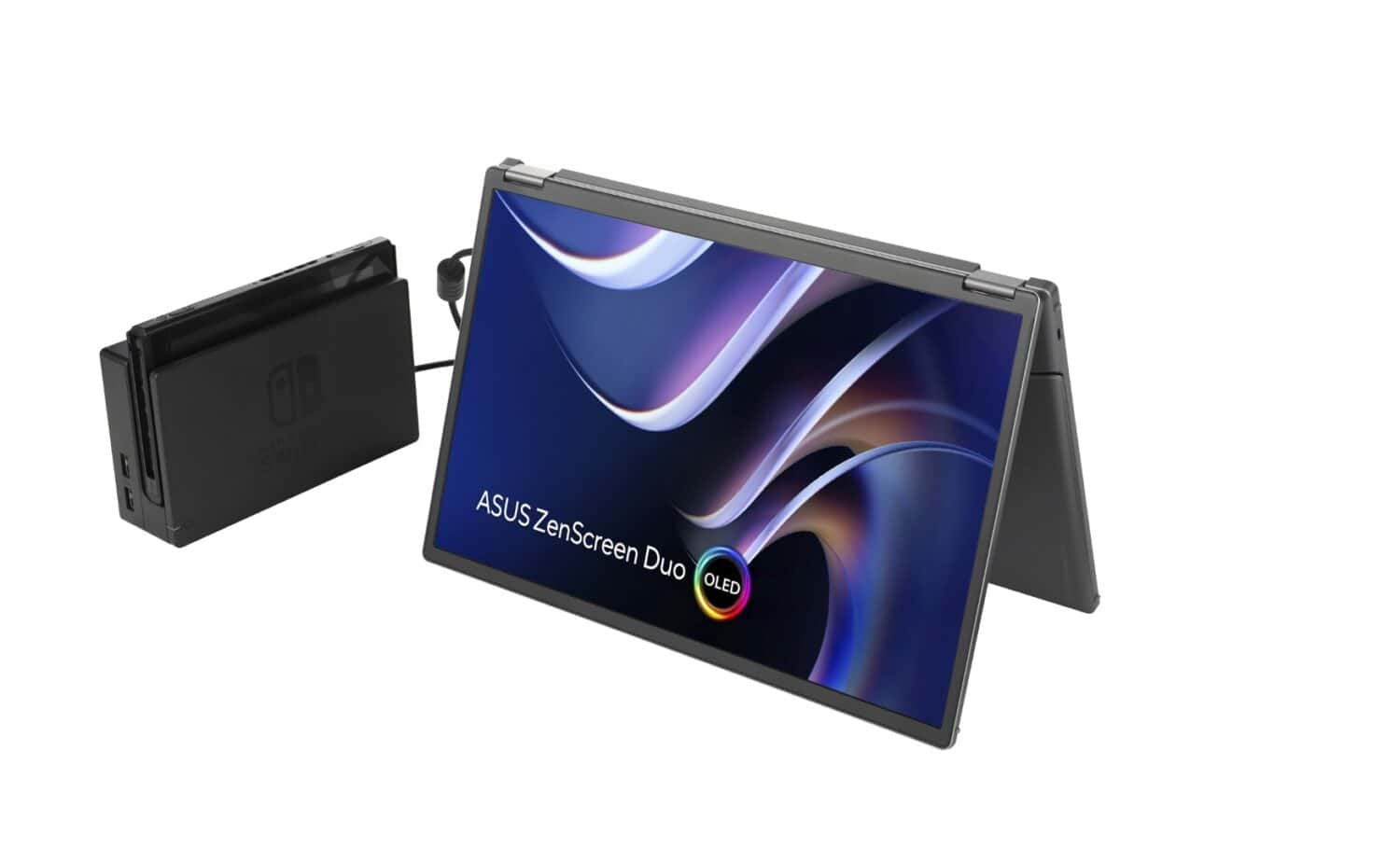
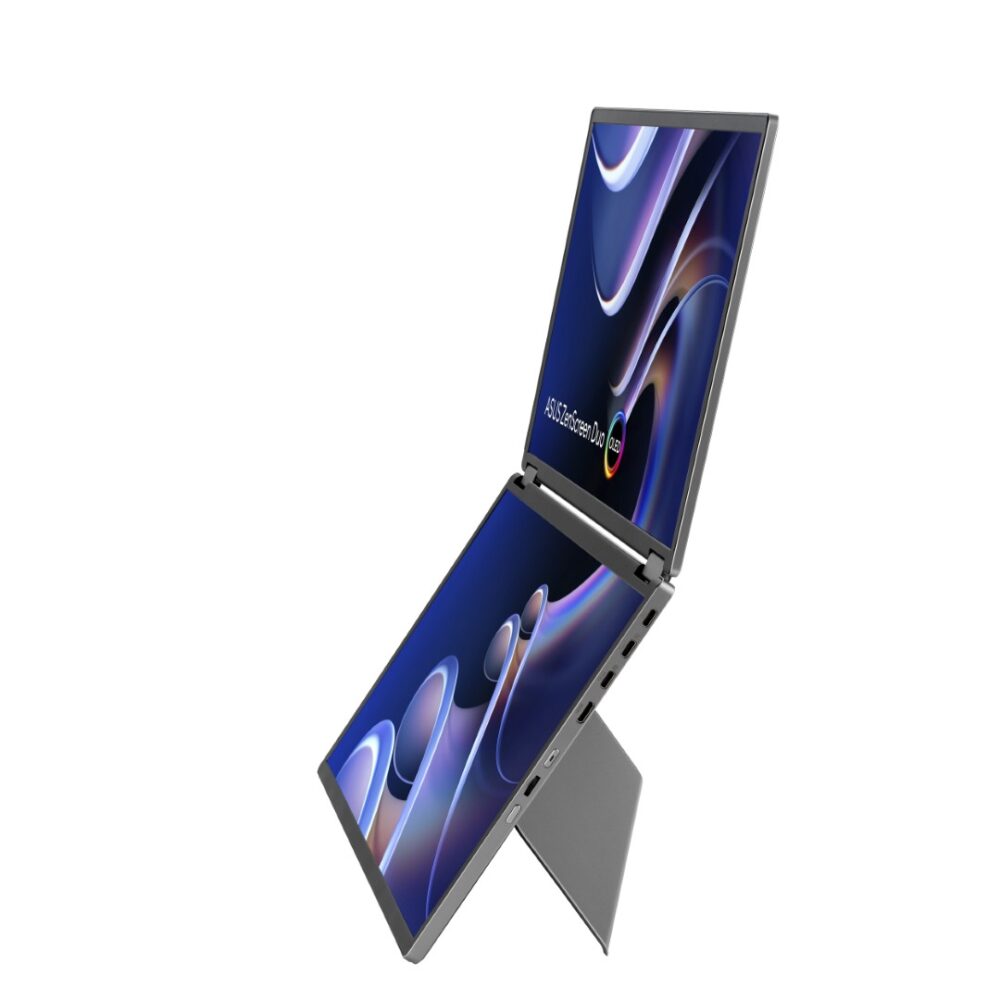
The last ZenScreen model we will discuss here is the most expensive and also the most unique. We will therefore spend a little more time on this model. The ASUS ZenScreen Duo OLED MQ149CD costs more than an entry-level notebook and, when folded, also looks like a laptop. However, it consists of two 14-inch OLED screens, each with a resolution of 1920×1200. You can add these to your workspace with the built-in kickstand. It is also possible to tilt the whole thing and display them side by side in portrait mode. The hinges can make a full 360-degree turn.
The fact that the ASUS ZenScreen Duo OLED MQ149CD consists of two OLED panels also partly explains its high price. It is also a calibrated screen that can display the full DCI-P3 spectrum. Furthermore, it can also be a lot brighter than most other mobile monitors you find on the market. Where 250 nits is often the maximum, these panels go up to 500 nits in HDR mode. That’s right, the ZenScreen Duo OLED MQ149CD supports HDR. We are quite fond of the slightly larger workspace of a 1920×1200 screen (16:10) too.
So it’s clear that the ASUS ZenScreen Duo OLED MQ149CD has a lot to offer in terms of image quality, even though the focus on the best possible colors means that they have a glossy finish, in contrast to the more businesslike, matte finish of the other two monitors in this review. Overall, it’s all a lot more high-end and luxurious than we’re used to from mobile monitors. You can see that right away, for example, in the much more luxurious box this model comes in than all the other mobile monitors we’ve seen so far.
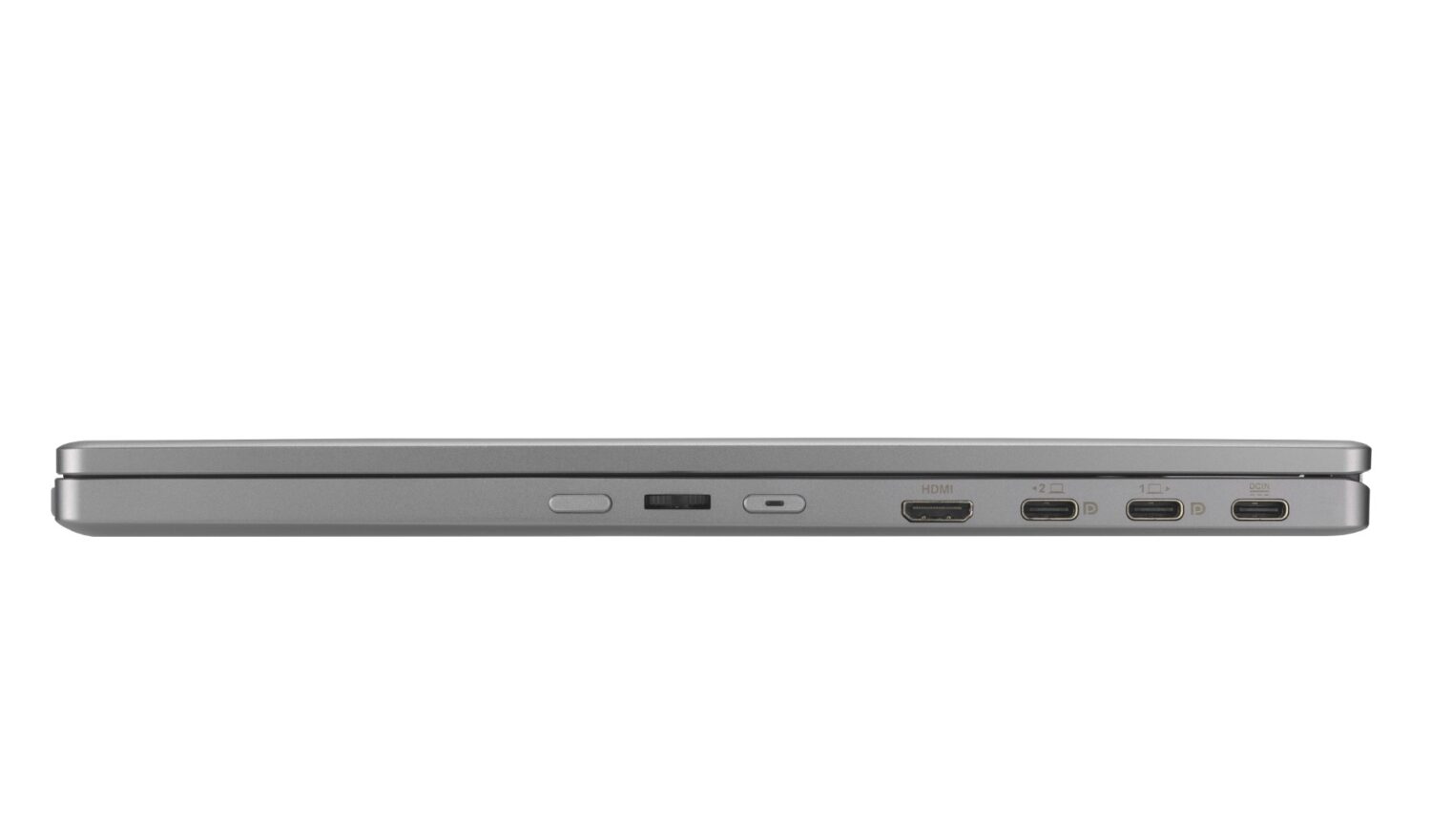
ASUS includes two Type-C-to-Type-C cables and a Mini HDMI-to-HDMI cable. The connections are located on the side of the lower screen. Incidentally, there are not two, but three Type-C connections. The top one is only for (additional) power. We also see a toggle switch that gives access to the full OSD menu. There’s a power button of course, and a button that makes navigating through the OSD menu easier. You can set all the usual things there. Here, too, we see the option to rotate automatically, in combination with the DisplayWidget Center software that needs to be running on your PC.
Powering two screens with a single Type-C connection is quite a challenge. First of all, the Type-C connection of the connected laptop must be able to supply sufficient power. But ASUS also states on its own website that the maximum brightness of 400/500 nits (in SDR and HDR respectively) may be too much for a single connection.
That’s why ASUS advises customers to connect an external power source for those kinds of brightness levels. Otherwise, the ASUS ZenScreen Duo OLED MQ149CD will simply switch itself off. We have experienced this several times, by the way. Since the default mode for the screens sets the brightness to 100 percent, you will encounter this issue quite quickly. Large white areas, such as those seen in email programs, trigger this in particular. After all, OLED consumes the most power when it has to display white.
Two screens, different modes
Looking at the ways in which you can use the separate screens of the ASUS ZenScreen Duo OLED MQ149CD, we arrive at four different modes of use.
You can merge the two screens and control them as a single 20-inch extra screen from your laptop. We use this setting regularly, for example when we want to read through a large document at our leisure. The thick bezel in the middle can be distracting at first. After a while, however, you learn to ignore it. When we’re working more actively, this mode isn’t always ideal, because you often find yourself working right in the middle of the screen. In this mode, that’s exactly around the thick bezel in the middle that we mentioned earlier.
Then there’s mode two: this allows you to display the same thing on both screens as on your laptop. This is what we call “duplicate” in Windows. Only now, instead of one, you have two extra screens. This mode can be useful if you need to give a presentation somewhere. You sit behind your laptop, place the ASUS ZenScreen Duo OLED MQ149CD on a table in ‘tent mode’ with people on either side who can watch, and you’re ready to go.
A third way to use the ASUS ZenScreen Duo OLED MQ149CD is to connect multiple input devices to it. One screen is then connected to the laptop, the other to another device. This can be another laptop, but also any other device that needs an (extra) screen. If you like to take your gaming console with you when you travel, you can also connect it to the screen.
The last mode is similar to what is called “extend” in Windows. This adds a lot of extra workspace to your environment and allows you to work across three screens, as it were. This mode is geared towards multitasking and is how we use this mobile monitor most often. It allows you to easily distinguish between the different screens. We write an article on the laptop, our notes or another additional source of information are displayed on the first screen of the ASUS ZenScreen Duo OLED MQ149CD, and the email program is open on the third screen.
You can switch between modes using a toggle switch on the side of the ASUS ZenScreen Duo OLED MQ149CD. There are a few limitations for the first and last modes mentioned above. That is to say, they have some additional requirements. The mode in which the two screens are combined into a single 1920×2400 image works via HDMI and Type-C, but only via USB-C2, not via the other Type-C connection. HDMI is also not an option for the last mode, in which you add the screens as two separate extra screens and extend the desktop to them. That only works via USB-C2.
See below for some photos of the ASUS ZenScreen Duo OLED MQ149CD:
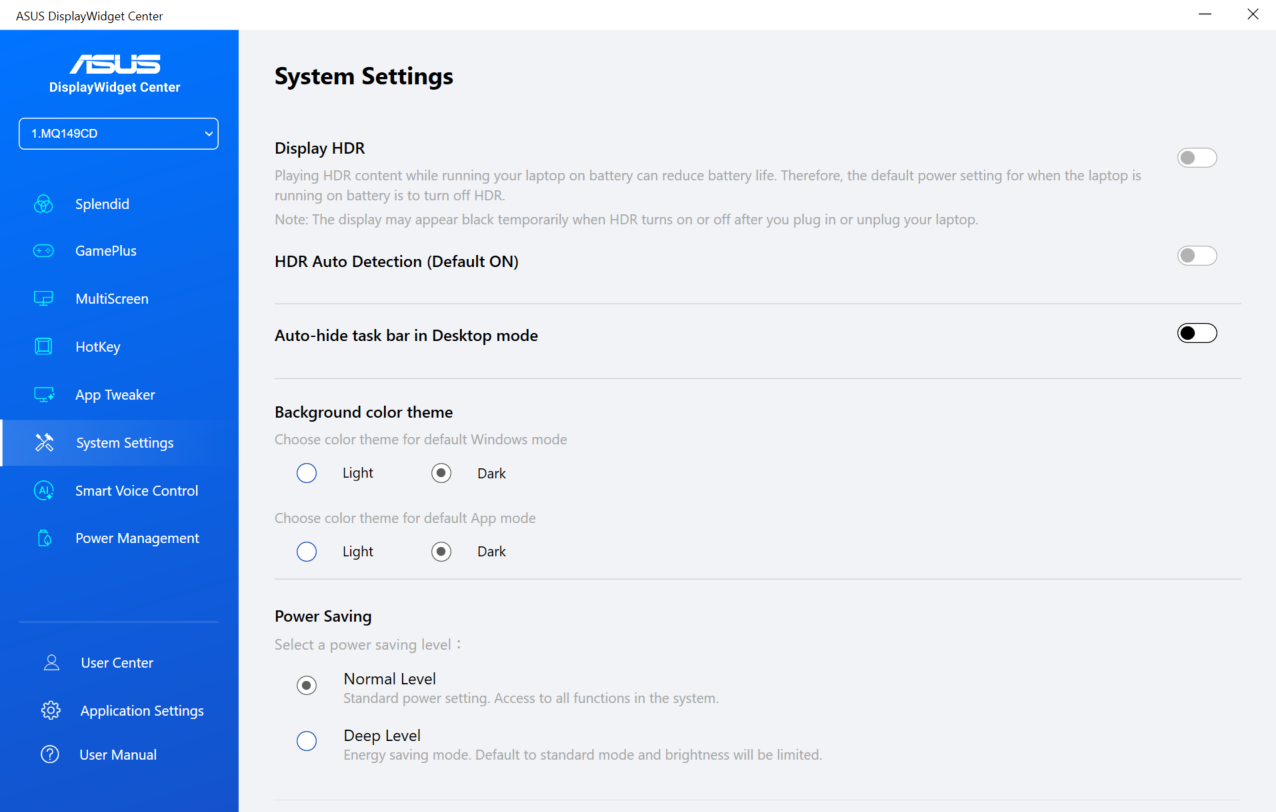
ASUS DisplayWidget Center
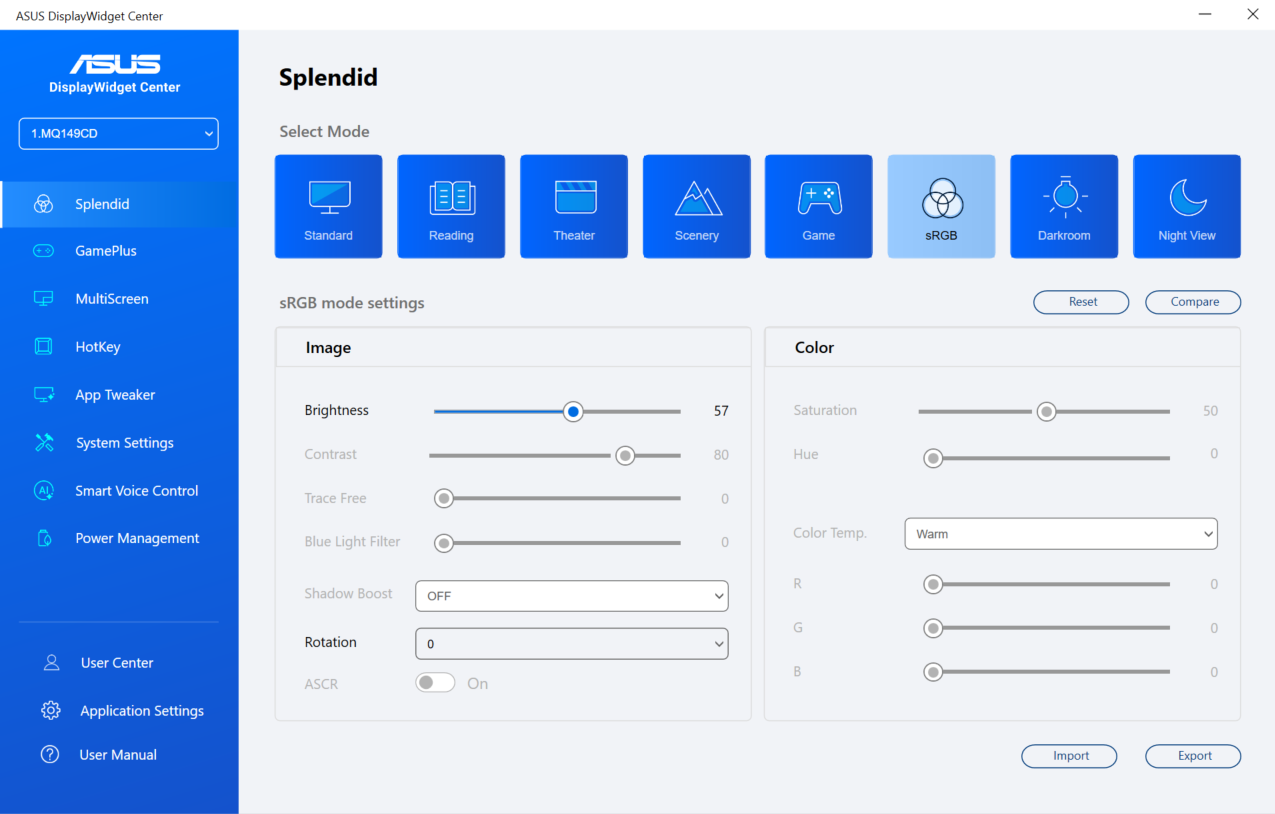
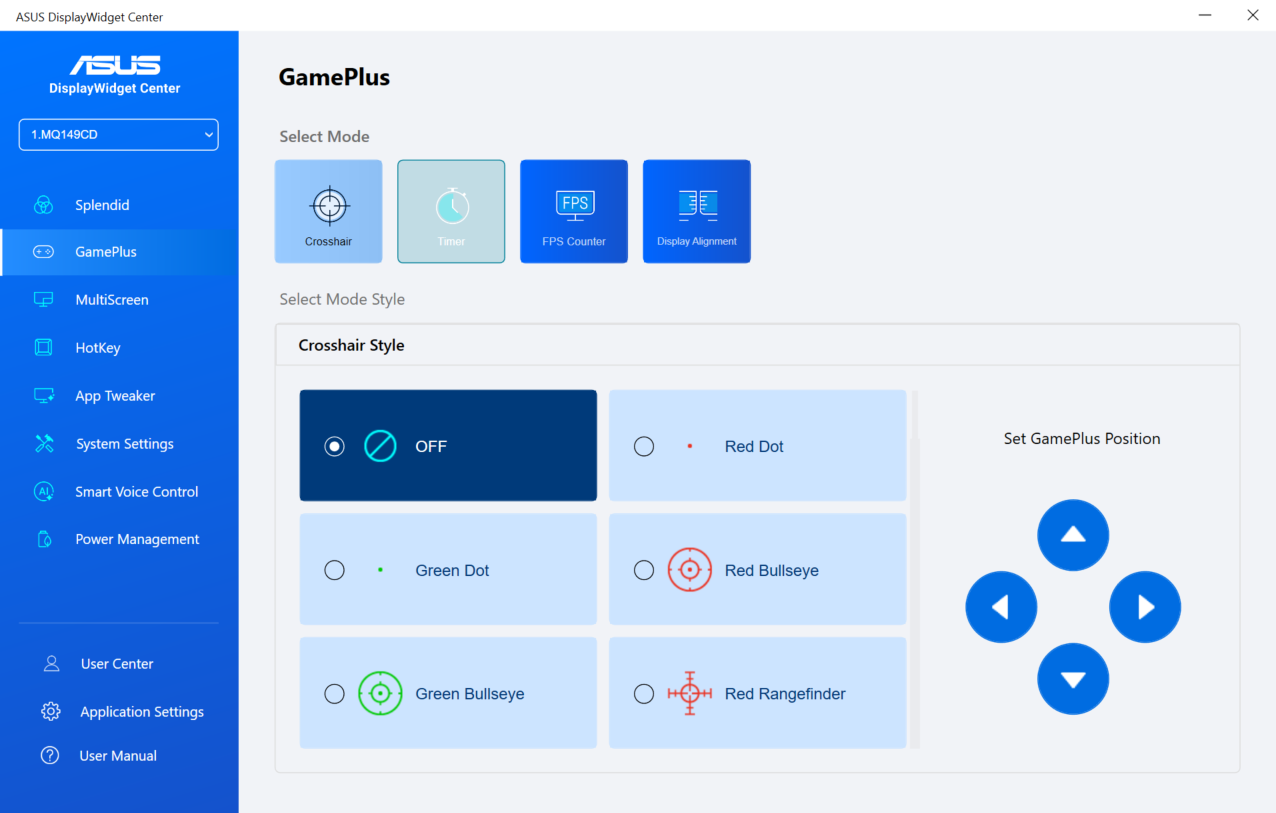
When discussing the individual screens, we already mentioned several times the software that ASUS makes available for many ZenScreen mobile monitors. ASUS DisplayWidget Center allows you to configure the monitors entirely according to your own preferences and must be running on the connected PC if you want the monitor image to rotate when you switch from landscape to portrait mode and vice versa.
In our opinion, the ability to automatically rotate the orientation of a monitor is the main reason to install the DisplayWidget Center software on your PC. Keep in mind that this is not enabled by default. You have to do this yourself in the Splendid mode of your choice. Splendid is the name ASUS uses for the various presets for screen settings. There are no fewer than eight of them. You can also set things like brightness, contrast, and the blue light filter here.
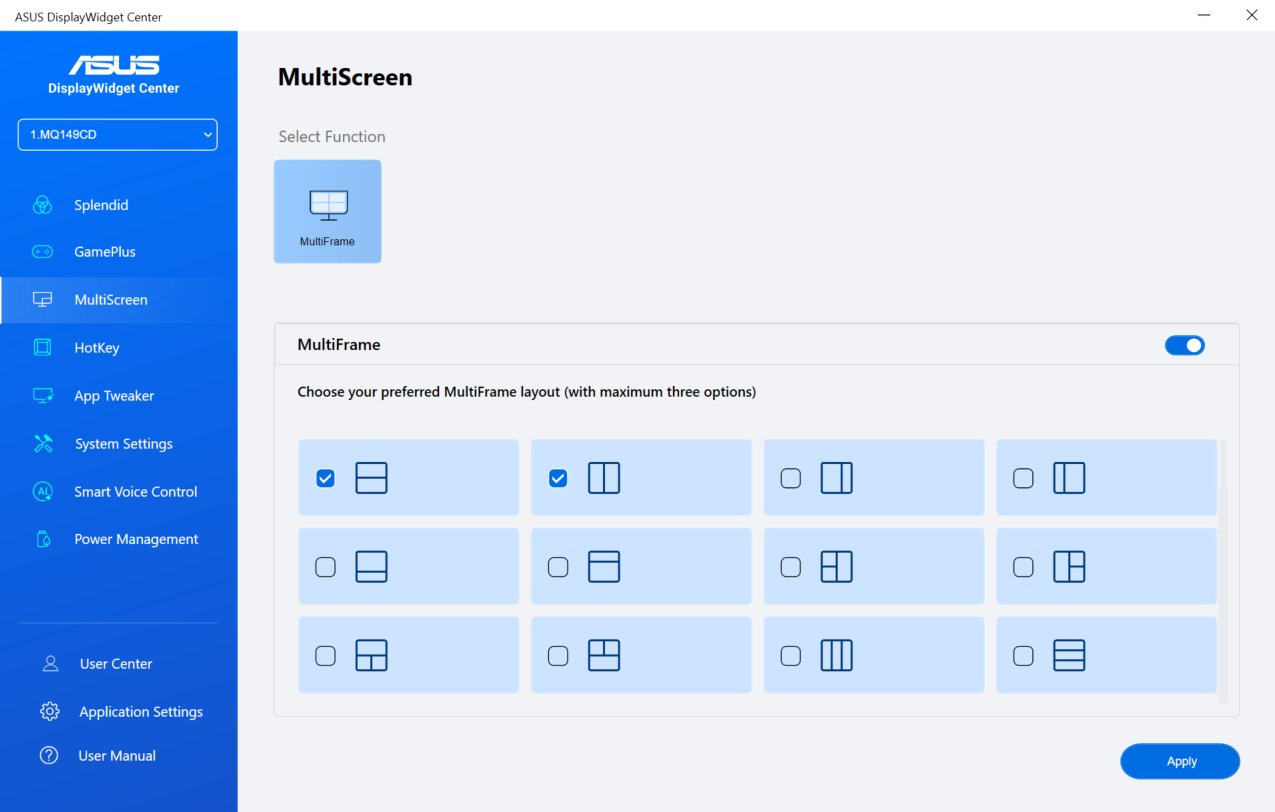
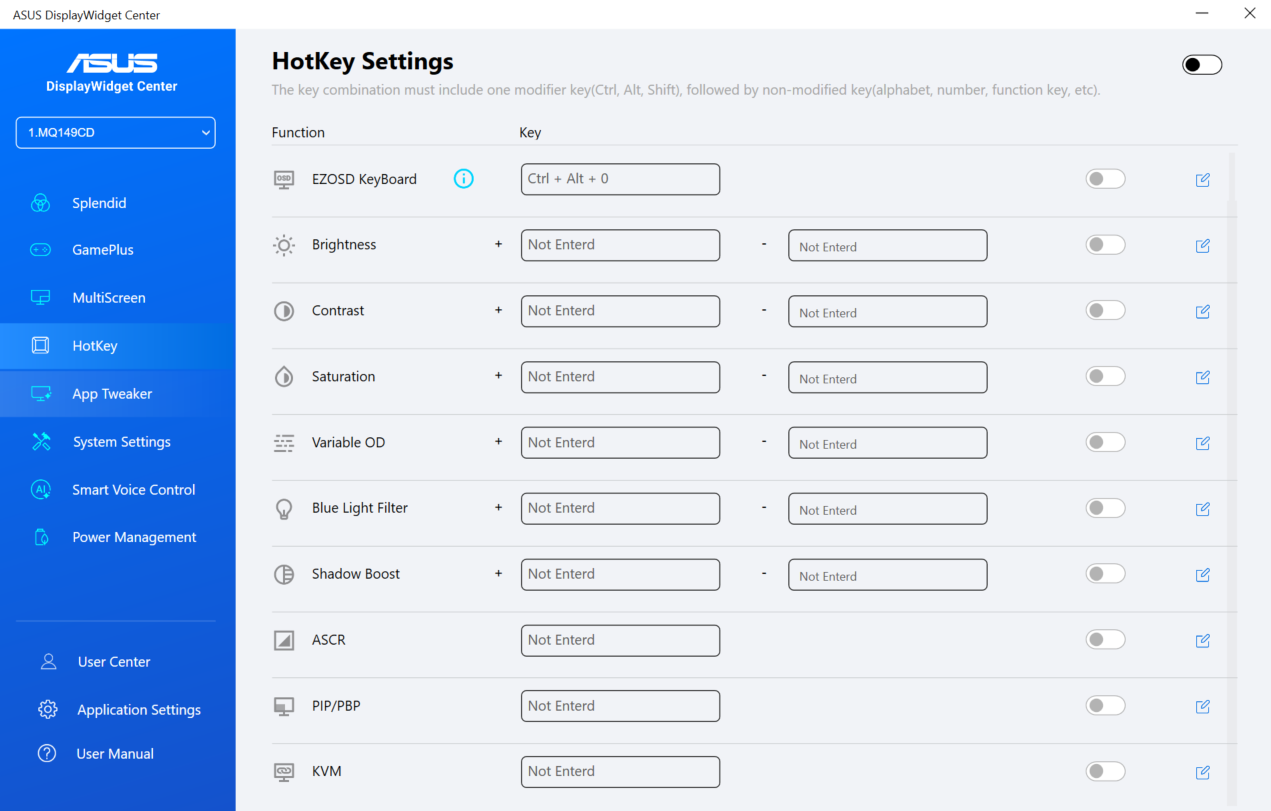
Looking further at the possibilities of ASUS DisplayWidget Center, the MultiScreen and HotKey sections are particularly noteworthy. The MultiScreen page allows you to arrange connected screens in specific ways. With HotKey, you can set all kinds of shortcut keys for the various settings that DisplayWidget Center offers.
All in all, we find DisplayWidget Center a useful addition, if only because of the auto-rotate functionality, which we use regularly.
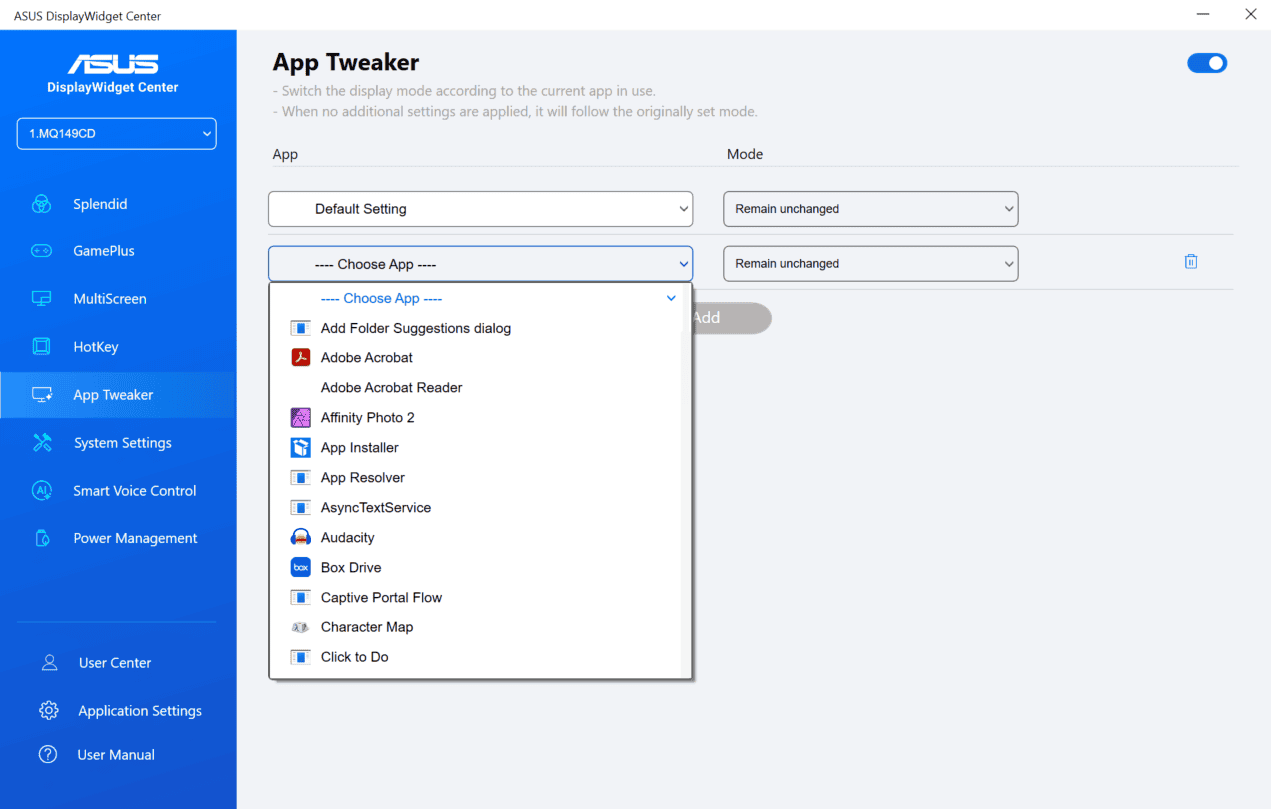
Below are some screenshots of the ASUS DisplayWidget Center:
Conclusion: mobile and not-so-mobile monitors for multiple use cases
We generally liked the three mobile ASUS ZenScreen monitors we tested. The ASUS ZenScreen Duo OLED MQ149CD is by far the most expensive, but also clearly the best. This dual screen has excellent color reproduction, high brightness, many uses, and is still extremely portable for two extra screens. However, we can also imagine that it is not the most logical choice for everyone. It is quite pricey, even though it is certainly not overly expensive for what you get. After all, you get two very good extra screens in return.
The other two screens we tested, the ASUS ZenScreen MB169CK and ASUS ZenScreen MB249C, are clearly less advanced in terms of quality than the dual model. However, we definitely recommend the first of the two if you want to add a lot of extra workspace on the go for a relatively small investment. 15.6 inches for just over 100 euros is definitely a good deal. It also supports the DisplayWidget Center software, which allows you to use this screen in portrait mode.
In our opinion, the ASUS ZenScreen MB249C has a fairly limited target audience. It’s somewhere between a permanent and a temporary screen, but in practice it will probably lean more towards permanent placement. The accessories that ASUS can supply for this display are also geared towards this. This monitor is especially interesting if you want to create an extra workspace in more challenging locations. However, in our opinion, the Full HD resolution is a bit too low for this size.
Also read: ASUS unveils new professional monitors, and an experimental one